
Clean Up Windows 11 with Bloatynosy
Strip out pre-installed bloatware, kill telemetry, and reclaim your system. A single 72 KB portable tool that gets the job done.
What Is Bloatynosy?
A portable Windows debloat tool that strips out pre-installed apps, kills background telemetry, and hands you back control of your own PC.
The Short Version
Bloatynosy is a free, open-source utility built for one purpose: removing the junk that ships with Windows 11. Pre-installed apps like Xbox Game Bar, Copilot, Clipchamp, and Phone Link eat up disk space and run background processes you never asked for. Bloatynosy scans your system, identifies these apps, and lets you remove them with a single click.
Created by developer Belim and hosted on GitHub under the MIT license, the Bloatynosy app has earned over 5,600 stars from users who prefer a clean Windows install without the bloat. The entire program weighs just 72 KB — smaller than most app icons — and runs as a portable executable. No installation required. Extract the ZIP, double-click, and start cleaning.
More Than Just App Removal
Bloatynosy goes beyond basic debloating. It includes dedicated privacy controls that disable Windows telemetry, turn off advertising IDs, block activity history tracking, and shut down Copilot and other AI features baked into Edge and the OS. If you care about what your computer reports back to Microsoft, this tool gives you granular toggle switches for each data collection setting.
The program also supports a plugin-based architecture through its built-in Plugin Store. Community-created modules extend what Bloatynosy can do — from deeper system tweaks to performance tuning. Written in C# and built on .NET Framework (already included with Windows), the Bloatynosy tool for Windows needs zero additional dependencies to run.
Who Is This For?
Anyone who sets up a fresh Windows 11 machine and wants to skip the half-hour of manually uninstalling apps. IT professionals managing fleet deployments use it. Privacy-conscious users who want telemetry disabled run it on day one. Even regular users who just want a faster, quieter PC benefit from the cleanup. Bloatynosy also supports Windows 10 with partial feature coverage, though Windows 11 is the primary target.
What Makes Bloatynosy Different
Built from the ground up as a modular Windows debloater, Bloatynosy gives you granular control over every pre-installed app, service, and telemetry hook on your system.
One-Click Bloatware Removal
Select and remove pre-installed Windows apps like Xbox Game Bar, Clipchamp, Phone Link, and Microsoft News in a single pass. Bloatynosy scans your system, lists every removable package, and lets you toggle each one individually or batch-remove them all at once.
Privacy & Telemetry Controls
Disable Windows telemetry, activity history, advertising ID tracking, and diagnostic data collection. Each privacy toggle maps to a specific registry key, so you know exactly what changes on your system.
AI Bloat Removal
Strip out Copilot, AI-powered suggestions in Edge, and other machine learning features Microsoft has added to Windows 11. If you want a clean OS without AI services running in the background, this handles it.
Plugin-Based Architecture
Extend Bloatynosy through its built-in Plugin Store. Community-developed plugins add new cleanup tasks, privacy tweaks, and optimization routines without waiting for an official update. Each plugin runs independently inside the modular framework.
Noir Dark Mode
The default interface uses a WinUI-inspired dark theme that works well on high-DPI displays and tablets. Colors are chosen for readability during extended use, and the layout adapts to different screen sizes.
Portable & Lightweight (72 KB)
The entire application is a single 72 KB ZIP file. No installer, no .NET runtime downloads, no setup wizard. Extract the ZIP, run the executable, and you are done. This makes Bloatynosy easy to carry on a USB drive or share with others who need a quick system cleanup. Compare that to alternatives like Ashampoo WinOptimizer, which ships as a 200+ MB installer.
Modular Tab Interface
The UI is organized into clear tabs for Debloat, Privacy, Plugins, and Settings. Each tab focuses on one task category, so you never have to dig through nested menus to find what you need.
System Optimization Tools
Beyond removing bloatware, Bloatynosy includes cleanup routines that clear temp files, reset Windows Update caches, and disable startup programs that slow down boot times. These run as separate tasks you can trigger on demand.
Granular Toggle Controls
Every bloatware item and privacy setting has its own on/off switch. Unlike script-based debloaters such as Win11Debloat, you pick and choose exactly what to remove and what to keep, with a clear visual indicator for each item.
Multi-Language Support
The interface supports multiple languages, making Bloatynosy accessible to users outside the English-speaking world. Language packs are bundled with the application and switch instantly without requiring a restart.
Bloatynosy is open-source under the MIT license. View the source on GitHub
System Requirements
Bloatynosy is extremely lightweight. It runs on virtually any Windows machine without installation.
| Component | Minimum | Recommended |
|---|---|---|
| Operating System | Windows 10 (version 1903 or later) | Windows 11 (latest build) |
| Processor | Any x86 or x64 CPU (1 GHz+) | Dual-core 2 GHz or faster |
| RAM | 512 MB free | 2 GB or more |
| Disk Space | Less than 1 MB (72 KB ZIP) | 5 MB (with plugins) |
| Display | 1024 x 768 | 1920 x 1080, High DPI |
| Runtime | .NET Framework 4.8 (built into Windows 10/11) | .NET Framework 4.8 |
| Permissions | Administrator rights (for system changes) | Administrator rights |
| Internet | Not required (works offline) | Optional (for Plugin Store updates) |
Ready to get started? Download Bloatynosy — just 72 KB.
Download Bloatynosy
Grab the latest portable build directly from GitHub. No installer needed – just extract the ZIP and run.
Bloatynosy for Windows
v1.0.20 January 14, 2025 72 KB (ZIP)
Download Bloatynosy Portable ZIP · 72 KB · Windows 10/11Direct download from GitHub Releases · No installer required
Alternative Downloads
Bloatynosy is a portable application. Extract the ZIP to any folder and double-click Bloatynosy.exe to launch.
No installation, no registry entries, no admin privileges until you apply changes.
Need help getting started? Check our step-by-step guide.
Screenshots
See Bloatynosy in action. Browse real screenshots of the interface, dark Noir theme, and built-in debloating tools.
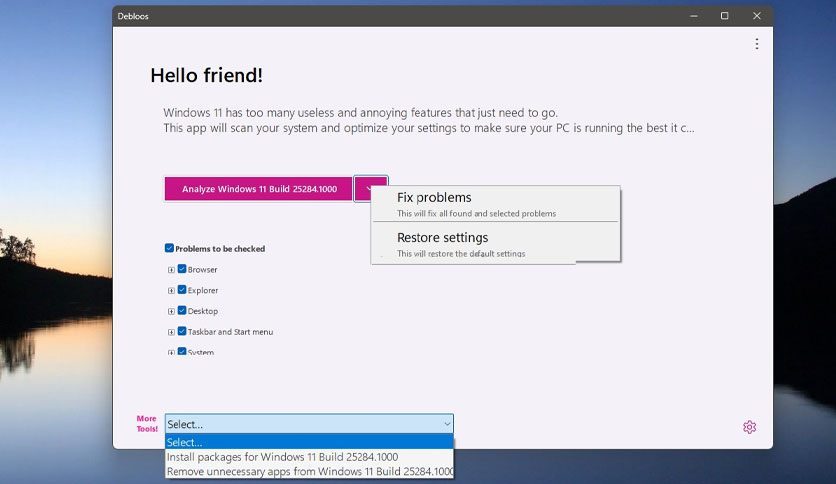
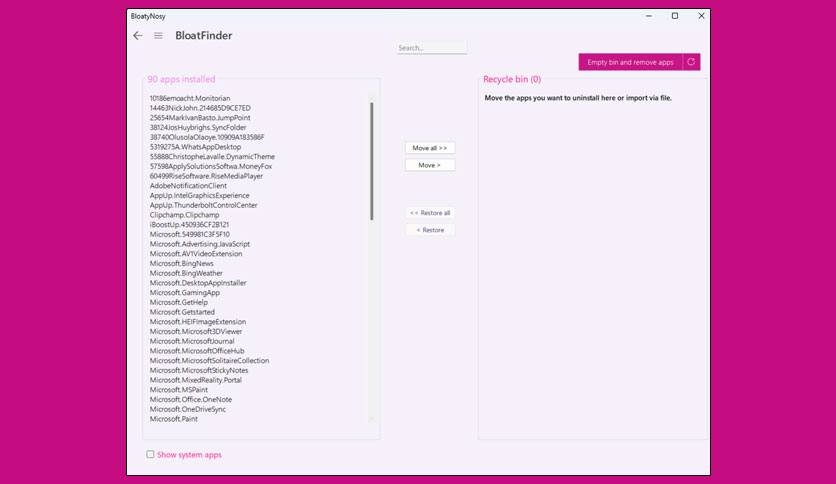
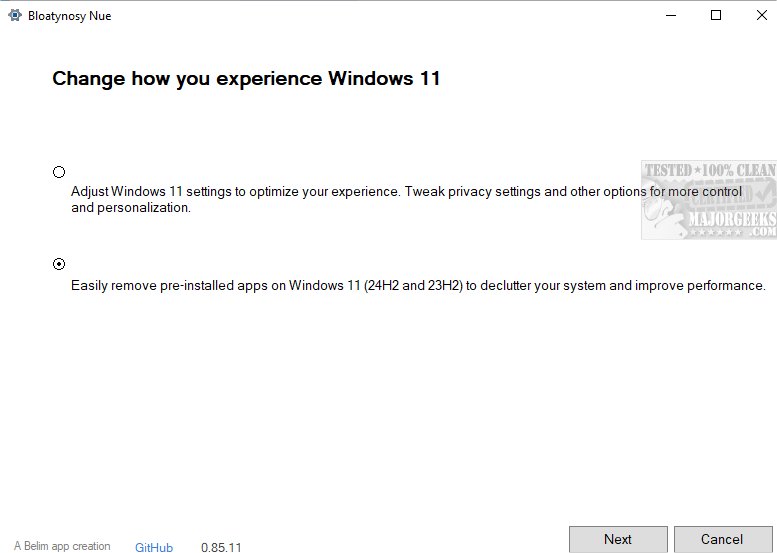
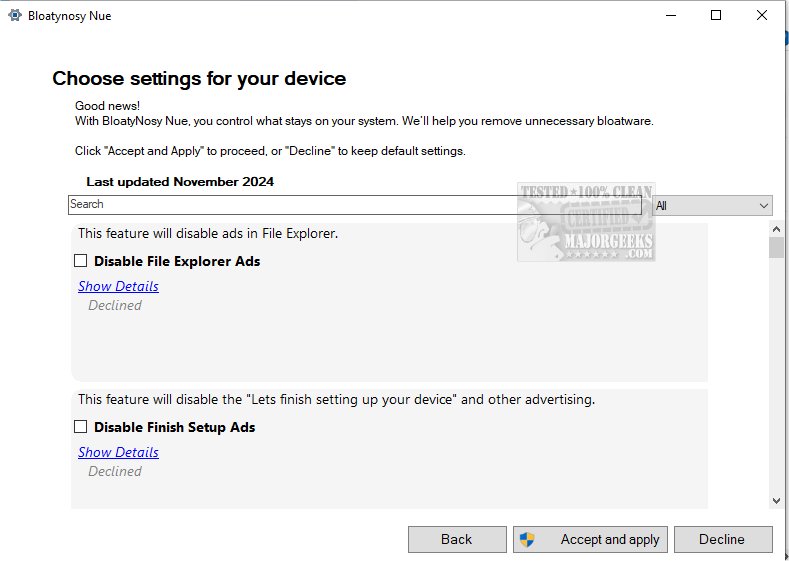
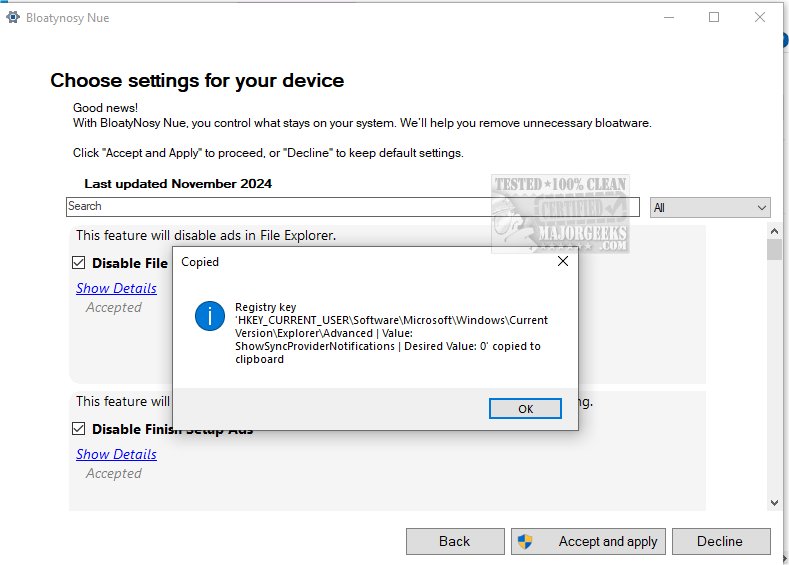
All screenshots captured from the official Bloatynosy application
Getting Started with Bloatynosy
Everything you need to download, set up, and start cleaning your Windows system in under five minutes. No installer required.
Downloading Bloatynosy
Grab the latest version of Bloatynosy from our download section above. The download is a single ZIP archive weighing about 72 KB. That is not a typo. The entire program fits in less space than a typical JPEG photo, so even on a slow connection you will have it in seconds.
Bloatynosy ships as a portable ZIP file. There is no .exe installer, no .msi package, no setup wizard. You download a ZIP, extract it, and run. This is the only distribution format the developer provides, and it keeps things simple: no registry entries, no background services, nothing that roots itself into your system.
The current release is version 1.0.20 (build 1.0.20.522), published January 14, 2025. It supports both 64-bit and 32-bit Windows. If you are running Windows 11, go with the standard download. Windows 10 users can run it too, though some debloat features specific to Windows 11 apps will not apply.
Installation Walkthrough
Here is the thing about Bloatynosy: there is no installation. It is fully portable. But you still want to set it up properly to avoid Windows throwing warnings at you.
Extract the ZIP
- Open your Downloads folder and find Bloatynosy.zip (around 72 KB).
- Right-click the ZIP file and select Extract All. Pick a permanent location like
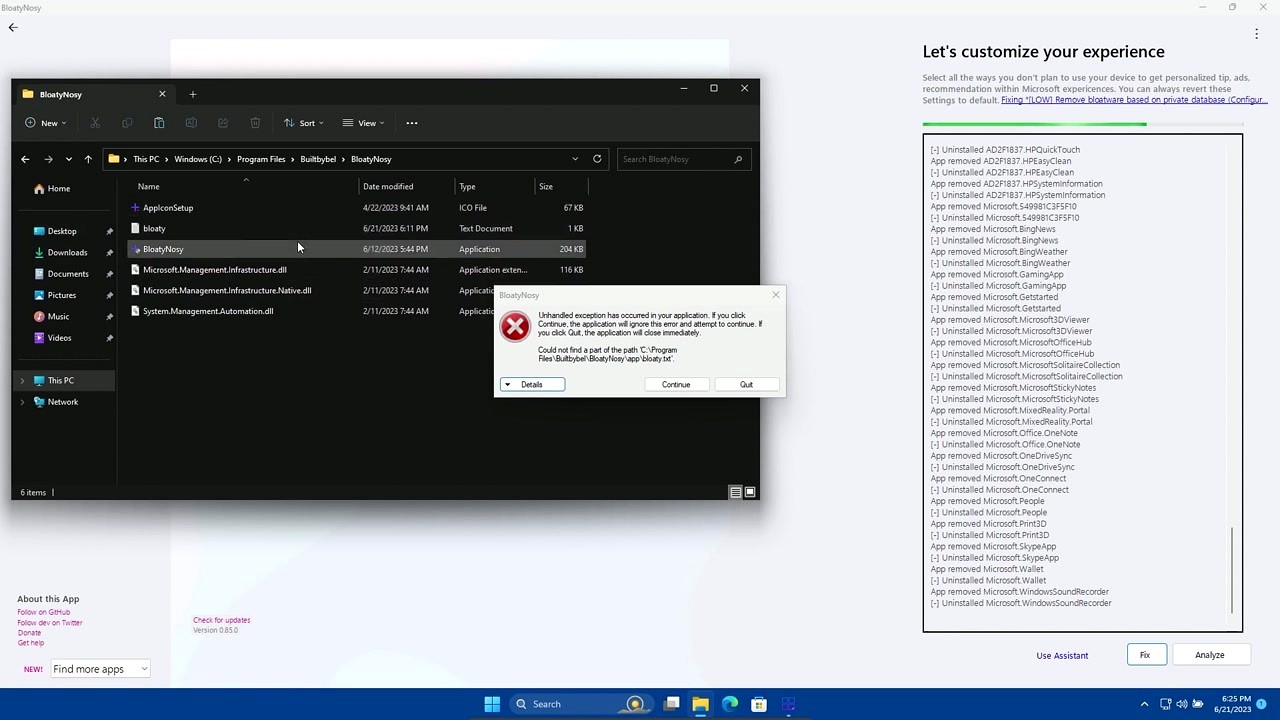
C:ToolsBloatynosyor your Desktop. Avoid extracting to system-protected folders like Program Files. - Inside the extracted folder you will find Bloatynosy.exe (about 200 KB) alongside a few supporting DLL files.
Handle Windows SmartScreen
Because Bloatynosy is not signed with an expensive code-signing certificate, Windows SmartScreen will flag it the first time you run it. This is normal for open-source software distributed via GitHub.
- Double-click Bloatynosy.exe.
- When SmartScreen shows “Windows protected your PC,” click More info.
- Click Run anyway.
This only happens once. After that, Windows remembers the file.
Run as Administrator
Bloatynosy needs admin privileges to modify system settings and remove pre-installed apps. Right-click Bloatynosy.exe and select Run as administrator. You can also check “Run this program as an administrator” in the file Properties under the Compatibility tab so it always launches elevated.
Portable Benefits
Since there is no installer, uninstalling is just as easy: delete the folder. No leftover registry entries, no uninstaller needed. You can also carry Bloatynosy on a USB drive to clean up multiple machines.
Initial Setup and Configuration
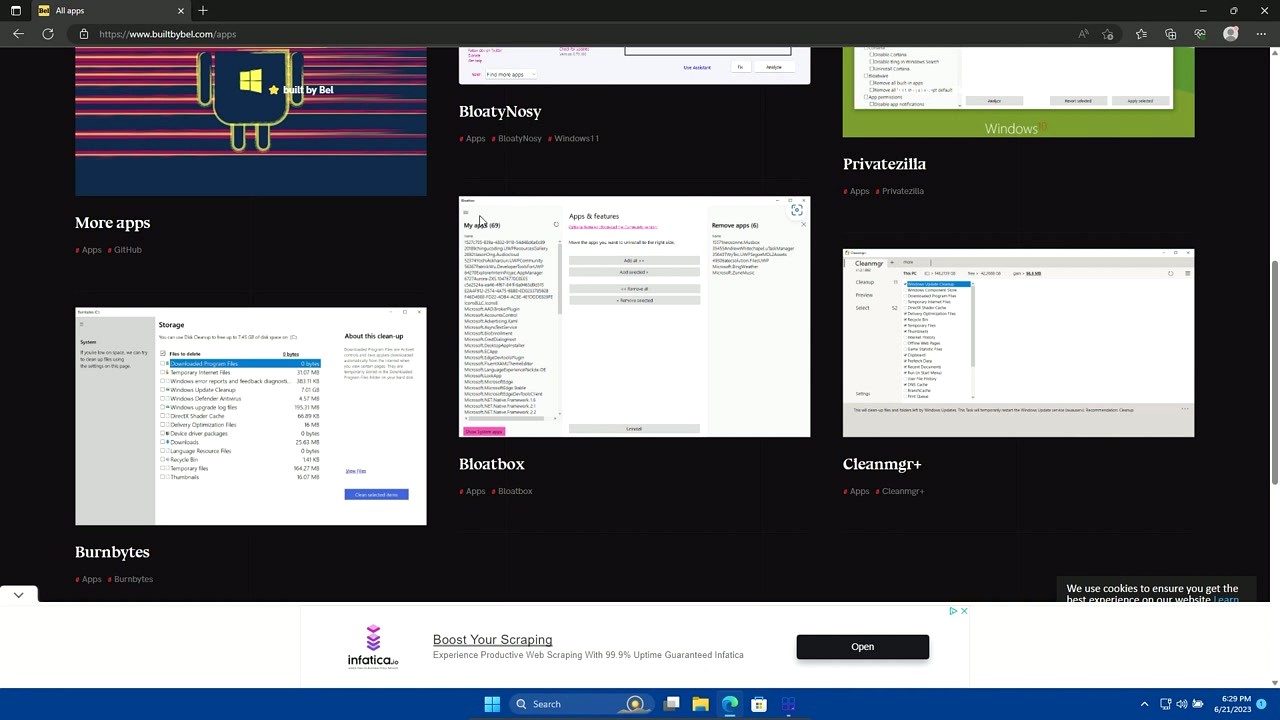
When Bloatynosy launches for the first time, it opens to the main dashboard with the heading “Let’s customize your experience.” This is the analysis screen where the tool scans your system for bloatware and privacy issues.
Run the System Analysis
Click the Analyze button in the bottom-right corner. Bloatynosy scans your system and highlights items that need attention. At the top, a blue notification will appear saying something like “There are 15 features which require your attention (click for details).” Click that notification to see the full list.
Review the Recommendations
The analysis groups findings into categories:
- Privacy tweaks – telemetry settings, advertising ID, activity history
- Experience tweaks – widgets, Copilot, desktop stickers, tips and suggestions
- Bloatware – pre-installed apps like Xbox, Clipchamp, Phone Link, Your Phone
- System optimizations – file extensions visibility, hidden files, transparency effects
Enable Dark Mode
Bloatynosy includes a dark theme called Noir. It gets enabled automatically when you apply the “Experience” fixes, which toggle Windows dark theme and the app dark theme together. If you want to switch manually, look for the dark mode toggle in the Settings tab.
Your First Debloat Session
Let’s walk through a real debloat. This is what most people came here to do: strip the junk out of a fresh Windows 11 install.
Quick Debloat (The One-Click Method)
- After clicking Analyze, click the blue notification at the top to expand all detected items.
- Select everything except the “Bloatware” category if you want to review individual apps before removing them.
- Click Fix in the bottom toolbar, then confirm with Apply Fixes.
- Watch the log panel on the right. It shows every change being made in real time: registry keys modified, apps uninstalled, services disabled.
Selective App Removal with BloatPilot
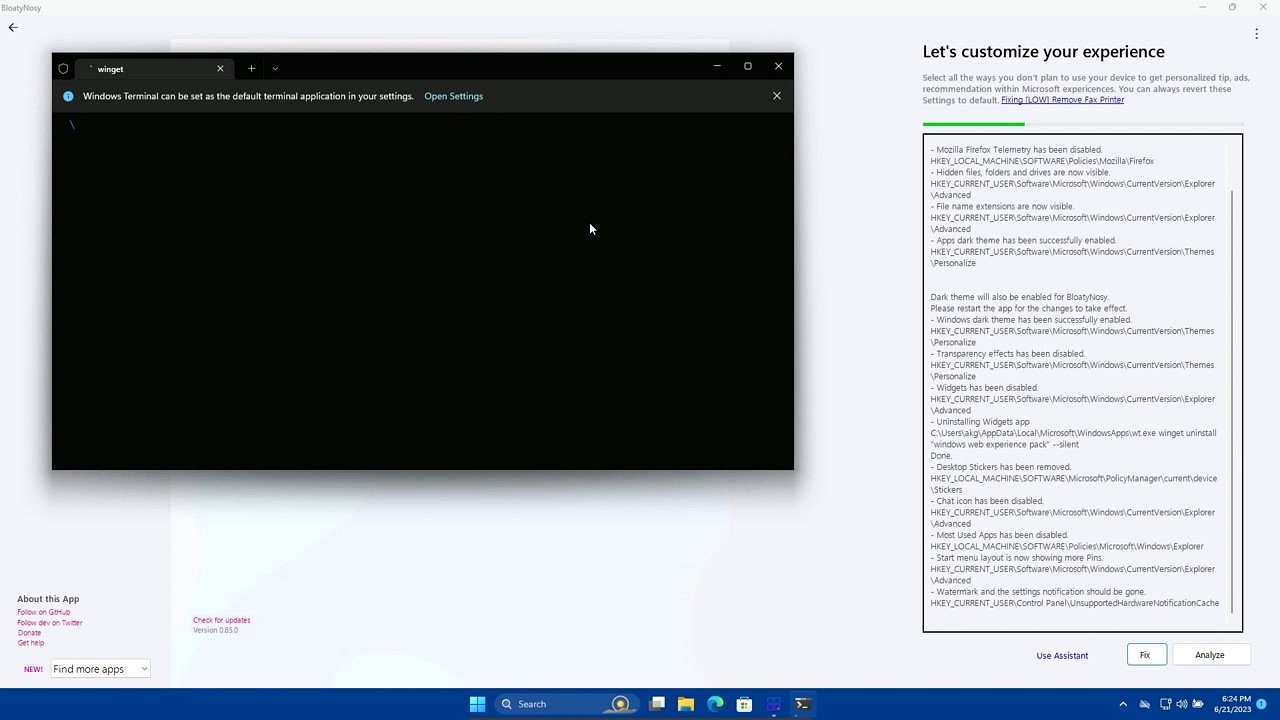
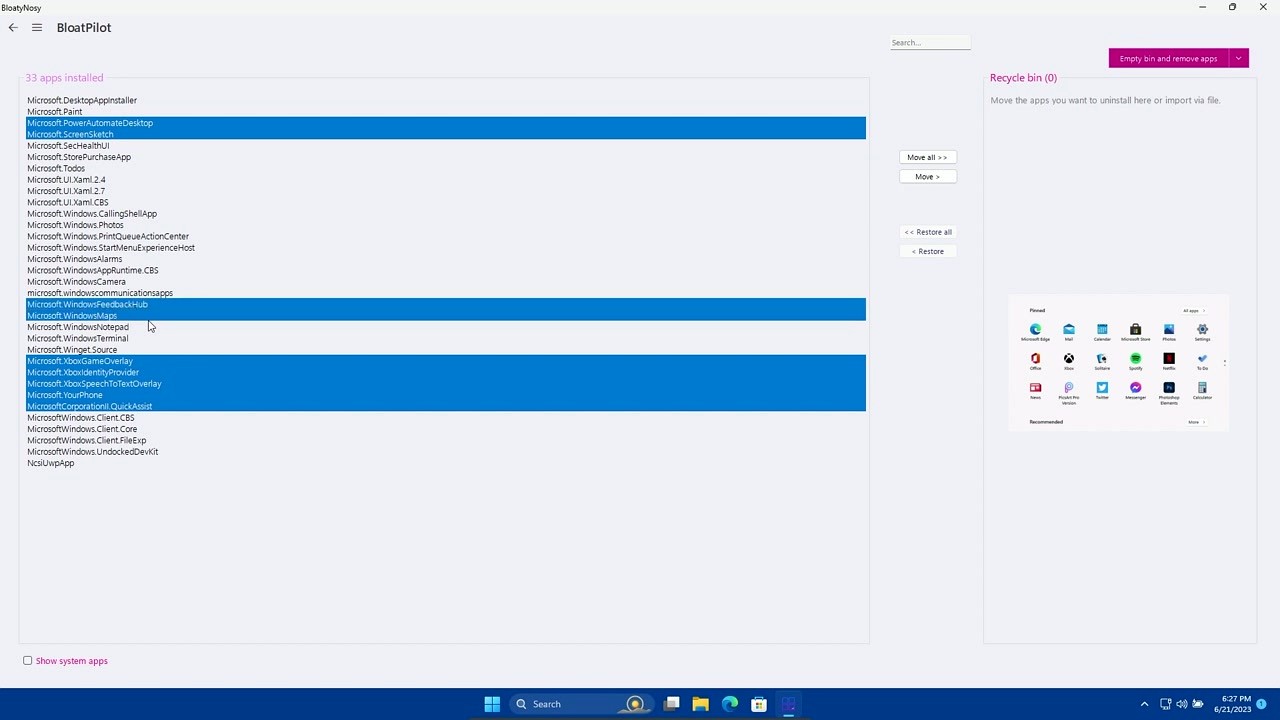
For more control over which apps get removed, use the BloatPilot module. This gives you a full list of installed Microsoft Store apps.
- Navigate to the BloatPilot section from the left sidebar or menu.
- You will see all installed apps listed. Apps highlighted in blue are commonly considered bloatware.
- Select the apps you want to remove. Common picks: Xbox Game Bar, Clipchamp, Phone Link, Microsoft News, Solitaire Collection, Mixed Reality Portal, People.
- Click Move >> to move selected apps to the Recycle Bin panel on the right.
- Click Empty bin and remove apps to uninstall them.
Using the Plugin Store
Bloatynosy has a built-in Plugin Store accessible via the Plugins tab. Plugins extend what the tool can do. For example, the AI bloat removal plugin specifically targets Copilot and AI-related features in Windows 11 24H2. The Flyby11 plugin helps upgrade unsupported hardware to Windows 11. Search for “AI” or “Plugin” in the search bar to find available options.
What Gets Changed
After running a full debloat, here is what typically happens on a stock Windows 11 system:
- Telemetry and diagnostic data reporting disabled
- Advertising ID turned off
- Widgets and desktop stickers removed
- Dark theme enabled system-wide
- File extensions and hidden files made visible
- Transparency effects disabled (small performance gain)
- 10-15 pre-installed apps uninstalled, freeing 400-800 MB of disk space
Tips, Tricks and Best Practices
Power-User Features Most People Miss
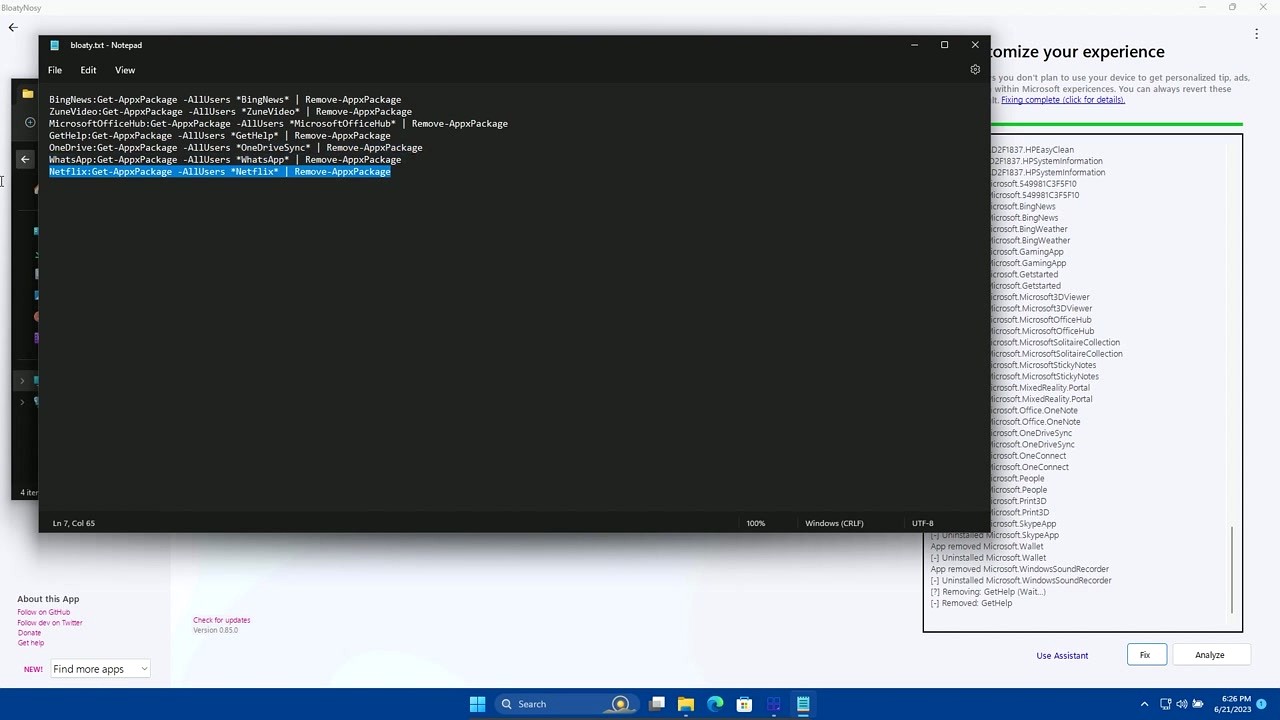
- Custom bloat lists: Bloatynosy reads from a
bloaty.txtfile containing PowerShell removal commands. You can edit this file to add or remove specific apps from the automated cleanup. Each line follows the formatAppName:Get-AppxPackage -AllUsers *AppName* | Remove-AppxPackage. - Search bar commands: The search bar at the top is not just for finding settings. Type “Plugin” to access the plugin store, “AI” to find AI-related bloat removal options, or specific app names to locate them quickly.
- Version check: At the bottom-left corner, you will see “Check for updates” and the version number. Click it periodically. Bloatynosy gets frequent updates, especially around major Windows releases.
- Winget integration: Bloatynosy can install replacement apps through Windows Package Manager (Winget). After removing bloatware, use the app installer module to grab lightweight alternatives.
Common Mistakes to Avoid
- Removing the Microsoft Store – makes it much harder to reinstall apps you might need later.
- Running without admin rights – changes silently fail if you forget to elevate.
- Skipping the restore point – if something breaks, a restore point is your quickest path back.
- Running on a work/managed PC – your IT department may push Group Policy changes that conflict with Bloatynosy modifications.
Where to Get Help
If you run into issues, the GitHub Issues page is the most active support channel. The developer (Belim) responds regularly. You can also find community discussions on GitHub Discussions and various Windows optimization subreddits. For staying updated, watch the GitHub repository to get notifications when new releases drop.
Ready to clean up Windows? Head to our download section and grab the latest release.
Frequently Asked Questions
Answers to the most common questions about downloading, installing, and using Bloatynosy on Windows 11 and Windows 10.
Is Bloatynosy safe to download and use?
Yes, Bloatynosy is safe. The entire source code is publicly available on GitHub under the MIT license, meaning anyone can inspect exactly what the program does before running it. With over 5,600 GitHub stars and 64 published releases, the project has been reviewed by thousands of developers and security researchers worldwide.
The portable ZIP file weighs just 72 KB and contains a single .NET executable — no bundled installers, no browser toolbars, no adware. Because the app is unsigned (most independent open-source tools are), Windows SmartScreen may display a warning the first time you launch it. That warning is about the missing digital signature, not about any detected threat. You can verify the download hash against the checksum listed on the GitHub release page.
- Download only from the official GitHub repository at
github.com/builtbybel/Bloatynosy - Verify the file hash matches what the developer published
- Run through VirusTotal if you want additional confirmation — the official release consistently shows 0 detections
- Avoid third-party download sites that repackage the ZIP with bundled extras
Pro tip: If SmartScreen blocks the launch, click “More info” then “Run anyway.” This happens with most unsigned portable tools and is not a security red flag for open-source software.
For verified download links, head to our Download section.
Is Bloatynosy free from malware and spyware?
Bloatynosy is completely free from malware and spyware. The project is open-source under the MIT license, so the full C# codebase sits on GitHub for public audit. No hidden network calls, no data collection, no telemetry — which is fitting for a tool built specifically to remove telemetry from Windows.
The compiled binary is a native .NET Framework application that runs entirely offline. It does not contact external servers, does not require an internet connection to function, and does not transmit any system data. The only optional network feature is the Plugin Store, which fetches plugin metadata from the GitHub repository itself — not from any third-party server. Version 1.0.20 (released January 2025) weighs 72 KB, making it smaller than most icon files.
- No installer payload — the app is portable and extracted from a plain ZIP
- No background services or scheduled tasks are created
- No registry entries are written for Bloatynosy itself
- Network monitor tools like Wireshark confirm zero outbound connections during normal use
Pro tip: You can run Bloatynosy from a USB drive on any Windows PC without leaving traces on the host system. Great for cleaning up shared or borrowed machines.
Check our Features section for a full breakdown of what the tool does and does not do.
Where is the official safe download for Bloatynosy?
The official source for Bloatynosy is the developer’s GitHub repository at github.com/builtbybel/Bloatynosy. Every release is uploaded directly by Belim (the sole developer behind the builtbybel account), and each release page includes the ZIP file, a changelog, and the source code archive.
Third-party sites like Softpedia, Uptodown, and CNET sometimes host copies of Bloatynosy. While some of these are legitimate mirrors, there is always a risk that the file has been repackaged or modified. The safest approach is to download from GitHub directly, where version 1.0.20 (Build 1.0.20.522) is the latest stable release as of January 2025. The download is a single ZIP file, roughly 72 KB in size.
- Go to the official GitHub releases page
- Find the latest version (currently 1.0.20)
- Download the
Bloatynosy.zipfile listed under Assets - Extract the ZIP to any folder — no installation required
Pro tip: Bookmark the GitHub releases page so you always have quick access to new versions without searching through third-party aggregator sites.
We link directly to the official GitHub release on our Download page.
Does Bloatynosy work on Windows 11 and Windows 10?
Bloatynosy was built primarily for Windows 11 and also supports Windows 10 with partial feature coverage. The debloat engine, privacy tweaks, and service management features work on both operating systems. Some Windows 11-specific modules — like removing Copilot, disabling Windows Recall, or tweaking the new Start Menu layout — only apply when running on Windows 11.
The tool runs on both x64 and x86 (32-bit) architectures. It requires the .NET Framework runtime, which ships pre-installed on Windows 10 version 1809 and later and all versions of Windows 11. No additional runtime downloads are needed. RAM usage sits around 15-20 MB during operation, so even low-spec machines handle it without trouble. The entire app weighs 72 KB on disk.
- Windows 11 (all versions): Full feature support including AI bloat removal, Copilot disabling, and modern app management
- Windows 10 (1809+): Core debloating, privacy tweaks, and service management work. Windows 11-specific toggles are hidden or greyed out
- Windows 10 LTSC/LTSB: Works but has fewer pre-installed apps to remove
- ARM devices: Not officially tested, though .NET apps typically run under emulation on ARM64 Windows
Pro tip: If you are running Windows 10 and plan to upgrade to 11, debloat after the upgrade — Windows 11 adds a fresh batch of bloatware that Windows 10 did not include.
See the full hardware and OS breakdown on our System Requirements table.
What are the minimum system requirements for Bloatynosy?
Bloatynosy has essentially no hardware requirements beyond what Windows itself needs. The application consumes less than 1 MB of disk space, uses around 15-20 MB of RAM while running, and places negligible load on the CPU. If your computer can boot Windows 10 or 11, it can run Bloatynosy.
The only real requirement is administrator rights. Bloatynosy needs elevated privileges to remove system apps, modify Windows services, and change registry-level privacy settings. Without admin access, the toggles will not apply changes. The .NET Framework 4.x runtime (included by default since Windows 10 1809) handles execution, so no additional downloads are necessary.
- OS: Windows 10 version 1809 or later, Windows 11 any version
- CPU: Any x64 or x86 processor (1 GHz minimum, matching Windows requirements)
- RAM: 1 GB free (the app itself uses under 20 MB)
- Disk space: Under 1 MB (portable, no installation writes)
- Runtime: .NET Framework 4.x (pre-installed on modern Windows)
- Permissions: Administrator / elevated rights required
Pro tip: Right-click the Bloatynosy executable and select “Run as administrator” to make sure all toggles function properly. Running without elevation will silently skip some changes.
Full specifications are listed in our System Requirements section.
Does Bloatynosy work on macOS or Linux?
No. Bloatynosy is a Windows-only application. It is written in C# targeting the .NET Framework and directly interacts with Windows-specific APIs, the Windows Registry, PowerShell, and the Windows package manager (AppX/MSIX). None of these components exist on macOS or Linux.
Running Bloatynosy under Wine on Linux or through Parallels/VMware on macOS is theoretically possible but entirely pointless — the tool modifies the host Windows installation, so running it inside a VM would only debloat the virtual machine’s Windows, not the host OS. There are no plans from the developer to port Bloatynosy to other platforms since its entire purpose is tied to Windows system management.
- macOS users: Look into built-in privacy settings in System Preferences > Privacy & Security, or use tools like LuLu (firewall) and OverSight (mic/camera monitor)
- Linux users: Most Linux distributions ship without bloatware by design. Package managers handle software removal natively
Pro tip: If you dual-boot Windows and Linux, you can keep Bloatynosy on a shared partition (FAT32/exFAT USB) and run it whenever you boot into Windows to maintain a clean setup.
For details on what Bloatynosy can do on your Windows installation, visit our Features overview.
Is Bloatynosy completely free to download and use?
Yes, Bloatynosy is 100% free. There is no premium tier, no paid upgrade, no trial period, and no feature gating. Every capability available in the latest release (version 1.0.20 as of January 2025) is accessible to all users at no cost.
The project is distributed under the MIT license, one of the most permissive open-source licenses available. This means you can download it, use it, modify it, and redistribute it without paying anything or asking permission. The developer (Belim) maintains the project through GitHub and does not monetize it through ads, donations-only popups, or freemium models. Over 64 releases have been published since the project began, all free.
- No license key or activation required
- No ads, nag screens, or upgrade prompts inside the app
- No data collection or usage tracking to fund the project
- Full access to the Plugin Store and all debloat modules without payment
Pro tip: If you find Bloatynosy useful, consider starring the GitHub repo. It costs nothing and helps the project gain visibility, which supports continued development.
Grab the free download from our Download section.
What license does Bloatynosy use and can I modify it?
Bloatynosy uses the MIT license. This is one of the simplest and most permissive software licenses in existence. You can use, copy, modify, merge, publish, distribute, sublicense, and sell copies of the software with almost no restrictions.
The only obligation under the MIT license is to include the original copyright notice and permission notice in any copy or substantial portion of the software. For practical purposes, this means you can fork the GitHub repository, make your own changes, and distribute your modified version as long as you keep the license file intact. The full source code (76.1% C#) is on GitHub at github.com/builtbybel/Bloatynosy, and the developer has accepted community contributions in the past.
- Personal use: Completely unrestricted
- Commercial use: Allowed under MIT (you could bundle it with a commercial product)
- Modification: Fork and modify freely, just keep the license file
- Distribution: Share original or modified versions without restriction
Pro tip: If you want to build a custom debloat profile for your organization, fork the repository and hardcode your preferred toggles as defaults. The modular C# architecture makes this straightforward.
Learn more about what the tool offers on our Features page.
How do I download and install Bloatynosy step by step?
Bloatynosy does not have a traditional installer. It is a portable application — you download a ZIP file, extract it, and run the executable. The whole process takes under a minute.
The latest release (version 1.0.20, Build 1.0.20.522) was published on January 14, 2025. The ZIP file is approximately 72 KB, making it one of the smallest Windows utility downloads available. The extracted executable runs on the .NET Framework that comes pre-installed with Windows 10 and 11, so there are no additional dependencies to install.
- Visit the Download section on this page and click the download button for the latest release
- Your browser will download a file named
Bloatynosy.zip(about 72 KB) - Right-click the ZIP file and select “Extract All” (or use 7-Zip/WinRAR)
- Open the extracted folder and right-click
Bloatynosy.exe - Select “Run as administrator” — admin rights are required for system-level changes
- If Windows SmartScreen appears, click “More info” then “Run anyway”
Pro tip: Extract Bloatynosy to a dedicated folder like C:ToolsBloatynosy rather than running it from the Downloads folder. This way you will not accidentally delete it during cleanup, and you can pin it to your taskbar for quick access.
For a detailed walkthrough with configuration tips, see our Getting Started guide.
Bloatynosy portable vs installer — which version should I use?
There is only one version: portable. Bloatynosy has never offered a traditional installer (.exe setup wizard or .msi package). The sole distribution format is a ZIP archive containing the standalone executable. This is a deliberate design choice by the developer.
The portable approach has real advantages for a debloat tool. It writes nothing to the Windows Registry for itself, creates no Start Menu shortcuts, installs no services, and leaves no footprint on your system. You can run it from a USB stick, a network drive, or any folder on your PC. When you are done, deleting the folder removes Bloatynosy completely — no uninstaller needed. The 72 KB footprint means it fits on practically any storage medium.
- No installation conflicts: Cannot interfere with other software during setup
- Easy updates: Download the new ZIP, replace the old files, done
- Multiple PCs: Carry it on a USB drive and use on any Windows machine
- Clean removal: Delete the folder, nothing else to clean up
Pro tip: Create a shortcut to Bloatynosy.exe and add it to your shell:startup folder if you want quick access after every login. Right-click the shortcut > Properties > Advanced > check “Run as administrator” so it always launches with the permissions it needs.
Download the portable ZIP from our Download section.
How to fix Bloatynosy not opening, crashing, or freezing?
If Bloatynosy refuses to launch, crashes on startup, or freezes during operation, the cause is almost always a .NET Framework issue, a missing admin elevation, or antivirus interference. These are solvable without reinstalling Windows.
The most common crash scenario reported on GitHub involves running Bloatynosy without administrator privileges. The app attempts to access protected system APIs on launch, and if denied, it can hang or throw an unhandled exception. Another frequent trigger is corrupted .NET Framework files — particularly after a failed Windows Update that partially overwrites framework DLLs.
- Run as admin: Right-click
Bloatynosy.exe> “Run as administrator.” This solves roughly half of all reported launch failures - Check antivirus: Add the Bloatynosy folder to your antivirus exclusion list. Some heuristic scanners flag debloat tools because they modify system settings
- Repair .NET Framework: Open Command Prompt as admin, run
sfc /scannowfollowed byDISM /Online /Cleanup-Image /RestoreHealth - Re-download: Delete the current copy and grab a fresh ZIP from the official GitHub releases page. Corrupted downloads happen, especially on unstable connections
- Compatibility mode: Right-click the .exe > Properties > Compatibility tab > enable “Run this program in compatibility mode for Windows 10” if you are on an older build
Pro tip: If Bloatynosy freezes mid-operation, do not force-close it immediately. Wait 30 seconds — some operations (especially mass app removal) take time to process. Force-closing during an uninstall can leave apps in a broken state.
Our Getting Started guide covers initial setup steps that prevent most of these issues.
Bloatynosy stopped working after a Windows Update — how to fix?
Windows Updates frequently restore previously removed bloatware and reset privacy settings that Bloatynosy changed. This is expected behavior from Microsoft, not a bug in Bloatynosy. Major feature updates (like 23H2 to 24H2) are especially aggressive about reinstalling removed apps.
When a Windows Update undoes your debloat work, Bloatynosy itself still functions — you just need to run it again. The tool detects currently installed apps and active services fresh each time it launches, so it will pick up anything that Windows reinstalled. If the Bloatynosy executable itself stops working after an update, the cause is typically a .NET Framework version change included in the update package.
- Download the latest version of Bloatynosy from GitHub (newer versions often add compatibility patches for recent Windows builds)
- Run it with administrator rights as usual
- Re-scan for bloatware — you will likely see previously removed apps listed again
- Re-apply your preferred debloat and privacy settings
- Consider disabling automatic app reinstallation: Settings > Apps > Advanced app settings > toggle off “Archive apps”
Pro tip: After every major Windows Update, run Bloatynosy as part of your post-update routine. Some users create a batch file that launches Bloatynosy automatically after a reboot, catching reinstalled bloatware before it consumes resources.
Check the Download section for the latest Bloatynosy version compatible with your Windows build.
Can I undo changes made by Bloatynosy and restore removed apps?
Partially, yes. Bloatynosy version 1.0.20 includes a “Restore default state” option for some settings, but it does not have a universal undo button that reverts every change. App removal through the Windows package manager is technically reversible, but the process varies by app.
Early versions of Bloatynosy (the BloatyNosy/ThisIsWin11 era in 2022-2023) had no restore functionality at all, which caused problems for users who removed critical components. The developer acknowledged these issues on GitHub and Neowin, and newer builds have improved. That said, aggressive debloating — especially removing Windows system apps like Settings dependencies — can require a Windows Reset to fully reverse.
- Reinstall removed apps: Open Microsoft Store, search for the removed app name, and click Install
- Restore Windows services: Open
services.msc, find the disabled service, and set it to Automatic - Reset privacy settings: Settings > Privacy & Security > re-enable the toggles Bloatynosy turned off
- Nuclear option: Settings > System > Recovery > Reset this PC (choose “Keep my files”) to restore all default apps and settings
Pro tip: Before running Bloatynosy for the first time, create a System Restore point. Open Start, type “Create a restore point,” click Create, and give it a name like “Pre-Bloatynosy.” This gives you a reliable rollback path if anything goes wrong.
Our Getting Started guide walks through safe debloat practices step by step.
How do I update Bloatynosy to the latest version?
Bloatynosy does not include a built-in auto-updater. To update, you download the new release from GitHub and replace the old files. The process takes about 30 seconds.
Because the app is portable, updates work differently from traditional installed software. There is no “Check for Updates” menu item. The developer publishes new builds on the GitHub releases page, and each version is a standalone ZIP. Version history is tracked through 64 releases published since the project began. The current stable version is 1.0.20 (Build 1.0.20.522), released January 14, 2025.
- Visit the GitHub releases page at
github.com/builtbybel/Bloatynosy/releases - Download the latest
Bloatynosy.zip - Close Bloatynosy if it is running
- Extract the new ZIP over the old folder, replacing existing files
- Launch the new version — your previous settings are not stored in the app folder, so nothing is lost
Pro tip: Click the “Watch” button on the GitHub repository and select “Releases only.” GitHub will send you an email notification whenever a new version drops, so you never miss an update.
Get the latest version from our Download section, where we link directly to the current release.
What is new in the latest version of Bloatynosy?
The latest stable release is version 1.0.20 (Build 1.0.20.522), published on January 14, 2025. This release focuses on stability improvements, faster startup, and better compatibility with recent Windows 11 builds (24H2 and later).
The 1.0.x series (nicknamed “Nue”) marked a major rewrite from the older BloatyNosy codebase. The interface was redesigned with a WinUI-inspired look, a plugin architecture was introduced, and the app moved away from monolithic toggle lists toward a modular system. Earlier releases in 2024 added the Plugin Store feature, AI bloat removal options (targeting Copilot and Edge AI features), and multi-language support. The Nue update also brought high-DPI display optimization and tablet-friendly touch targets.
- v1.0.20: Stability fixes, faster boot, updated Windows 11 24H2 compatibility
- v1.0.x (Nue series): Complete UI redesign, Plugin Store, dark Noir theme default
- AI bloat removal: Dedicated controls for Copilot, Recall, Edge AI assistant
- Plugin architecture: Extend Bloatynosy with community plugins from the built-in store
Pro tip: Read the changelog on each GitHub release page before updating. Some versions change default behaviors (for example, the Nue rewrite removed direct tweak access that older versions had, which frustrated some power users).
Compare version features on our Features page.
Bloatynosy vs O&O ShutUp10++ — which Windows debloater is better?
Both are solid choices, but they serve slightly different purposes. Bloatynosy focuses on removing bloatware apps and disabling unwanted services, while O&O ShutUp10++ is primarily a privacy settings manager that gives granular control over Windows telemetry and data collection toggles.
O&O ShutUp10++ has been around longer, maintains a polished interface, and is backed by a German software company (O&O Software) with decades of Windows utility experience. It is also portable and free, though it is closed-source. Bloatynosy is open-source under MIT, lighter (72 KB vs several MB for ShutUp10++), and includes app removal features that ShutUp10++ does not offer. Bloatynosy also has a plugin system for extending functionality.
- Choose Bloatynosy if: You want to remove pre-installed apps (Xbox, Clipchamp, Copilot), need a plugin system, prefer open-source software, or work with very limited disk space
- Choose O&O ShutUp10++ if: You want detailed privacy/telemetry controls with per-setting explanations, prefer a more mature and stable tool, or need enterprise deployment features
- Use both: Many users run Bloatynosy for app removal and ShutUp10++ for privacy tuning — the tools complement each other without conflicts
Pro tip: Run Bloatynosy first to strip out unwanted apps, then follow up with O&O ShutUp10++ to lock down the privacy settings on what remains. This two-tool approach gives you the most thorough cleanup.
See how Bloatynosy stacks up feature-by-feature in our Features section.
Bloatynosy vs Chris Titus Tech Windows Utility — which should I pick?
The Chris Titus Tech Windows Utility (CTT WinUtil) is a PowerShell-based tool that runs through a script, while Bloatynosy is a compiled C# GUI application. Both debloat Windows, but the user experience is fundamentally different.
CTT WinUtil is launched via a PowerShell one-liner command, which some users find intimidating. It provides a comprehensive set of tweaks, application installers (via winget), and system optimization options. Bloatynosy offers a native desktop interface with point-and-click toggles, a visual app mockup showing detected bloatware, and a plugin store. CTT WinUtil is frequently updated by Chris Titus and community contributors on GitHub, while Bloatynosy is maintained by a single developer (Belim).
- Choose Bloatynosy if: You prefer a visual GUI over command-line tools, want a lightweight portable app (72 KB), or find PowerShell scripts uncomfortable to run
- Choose CTT WinUtil if: You want an all-in-one tool that also installs apps via winget, prefer PowerShell scripting flexibility, or want community-maintained optimization presets
- Technical difference: CTT WinUtil runs entirely in PowerShell and requires execution policy changes. Bloatynosy is a standalone .exe with no script execution needed
Pro tip: If PowerShell execution policies scare you or your workplace blocks script execution, Bloatynosy is the easier pick. It runs as a regular Windows application without needing to change any security policies.
For full details on Bloatynosy capabilities, check our Features overview.
How do I use the Bloatynosy Plugin Store to extend functionality?
The Plugin Store is a built-in feature that lets you download and activate community-made plugins directly within Bloatynosy. Plugins add new debloat profiles, privacy tweaks, and optimization routines without requiring a separate download or manual file placement.
To access the Plugin Store, launch Bloatynosy and navigate to the “Plugins” tab in the top navigation bar. The store fetches its plugin list from the official GitHub repository, so you need an internet connection the first time you browse. Plugins include tools like blocking New Outlook (preventing Microsoft from replacing classic Outlook), removing specific Windows 11 widgets, and applying gaming optimization presets that disable background services known to cause frame drops.
- Open Bloatynosy with administrator rights
- Click the Plugins tab in the top navigation
- Browse available plugins — each shows a description and status indicator
- Click a plugin to install/activate it
- Applied plugins take effect immediately — some may require a restart for full effect
Pro tip: Not all plugins are safe for every system. Read the description carefully before activating — gaming optimization plugins, for example, may disable services that non-gaming users actually need (like print spooler or Windows Search indexing).
Learn about the full plugin ecosystem on our Features page.
How to remove Copilot and AI features from Windows 11 using Bloatynosy?
Bloatynosy includes dedicated controls for disabling Microsoft Copilot and other AI features added to Windows 11 in 2024. This was one of the most requested features from the community, and the Nue rewrite addressed it directly.
Microsoft has been progressively integrating Copilot into Windows 11 through system updates. It appears as a taskbar icon, an Edge sidebar feature, and is woven into Settings and File Explorer in newer builds. Bloatynosy can disable the Copilot system service, remove the taskbar shortcut, block the Edge AI assistant sidebar, and prevent Windows Recall (the controversial screenshot-based activity tracker) from activating. These options appear under the debloat and privacy sections of the app.
- Launch Bloatynosy as administrator
- Go to the Debloat tab and look for “Copilot” in the detected items list
- Toggle it on (marked for removal) and apply changes
- Switch to the Privacy tab and disable AI-related telemetry options
- Check the Plugin Store for additional AI bloat removal plugins if available
Pro tip: After removing Copilot, check Edge settings manually (edge://settings/sidebar) to disable the Copilot sidebar there as well. Bloatynosy handles the system-level component, but Edge has its own toggle that persists independently.
More details on AI bloat removal are covered in our Getting Started guide.
How do I completely uninstall Bloatynosy from my computer?
Deleting the folder is all you need to do. Bloatynosy is a portable application that does not install itself into Windows. It writes no registry entries for itself, creates no Start Menu entries, registers no services, and drops no files outside its own folder.
Because the 72 KB application runs entirely from wherever you extracted the ZIP, “uninstalling” it means deleting that folder. If you pinned a shortcut to the taskbar or Start Menu, remove that shortcut as well. There is nothing in Add/Remove Programs (Apps & Features) to uninstall because no installer was ever run. The changes Bloatynosy made to your system (removed apps, disabled services, privacy tweaks) remain active after deleting the tool — those are Windows-level changes, not Bloatynosy-dependent settings.
- Close Bloatynosy if it is running
- Navigate to the folder where you extracted it (e.g.,
C:ToolsBloatynosy) - Delete the entire folder
- Remove any shortcuts from taskbar, desktop, or Start Menu
- Empty the Recycle Bin if you want the space back (though 72 KB is negligible)
Pro tip: Removing Bloatynosy does not restore the apps it removed or the settings it changed. To reverse those changes, you need to reinstall the apps from the Microsoft Store or use Windows Reset. See the FAQ above about undoing changes for detailed steps.
If you plan to reinstall later, download the latest version from our Download section.
Ready to clean up your Windows installation?
Download Bloatynosy